


Description
Download FBackup – Easy Automated Backup Tool for Windows, Mac, and More
Overview – Why FBackup Is a Must‑Have Backup Utility
In today’s digital world, losing important files because of a hard‑drive crash, accidental deletion, or ransomware attack can be devastating. That is why a reliable backup solution is no longer a luxury—it’s a necessity. FBackup steps into this space as a lightweight, yet powerful, backup application that lets you create automated copies of any folder or drive with just a few clicks. The program’s primary goal is to make the backup process “set‑and‑forget,” allowing you to focus on work or leisure while your data is safely mirrored to a location of your choice.
What sets FBackup apart from many free utilities is its blend of simplicity and depth. New users can rely on the intuitive Simple wizard, which walks them through selecting source files, destination paths, and a schedule in a step‑by‑step fashion. More experienced users will appreciate the Advanced mode, where granular control over compression, scheduling, and command‑line execution is at their fingertips. Whether you’re safeguarding personal photos, critical business documents, or entire system partitions, FBackup offers a flexible framework that can be tailored to any backup strategy.
Security is baked into the design: backups can be encrypted, compressed to save space, and stored on local drives, external USB devices, or network shares. Recent updates have added a command‑line interface, allowing power users to script backup jobs, integrate them with other automation tools, or run them from a .bat file. An independent “Test” operation also lets you verify the integrity of existing backups without restoring them, giving peace of mind that your copies are usable when you need them most.
While FBackup does not currently support FTP destinations or incremental backups—a feature common in premium products—it still delivers a solid, free solution for home users, small businesses, and IT professionals who need a straightforward way to protect their data. Its clean UI, reliable scheduler, and cross‑platform compatibility (Windows 10/11 and macOS 10.15+) make it a compelling choice for anyone looking to create secure, automated backup copies without a steep learning curve.
Key Features That Make FBackup Stand Out
- Two‑Mode Backup Creation: Choose between a Simple wizard for quick setups or an Advanced mode for detailed configuration.
- Multiple Backup Jobs: Create unlimited backup profiles, each with its own source, destination, and schedule.
- Compression & Encryption: Reduce storage needs and protect data with built‑in compression and optional AES‑256 encryption.
- Scheduler Integration: Set daily, weekly, or monthly backup times that align with Windows Task Scheduler.
- Command‑Line Support: Run backups via scripts or batch files, enabling automation in larger IT workflows.
- Test Operation: Verify the integrity of existing backups without performing a full restore.
- Pause & Resume: Temporarily halt a running backup and continue later without starting over.
- Network Share Compatibility: Save backups to mapped network drives or shared folders for centralized storage.
- Free & No Ads: Completely free to download and use, with no intrusive advertisements or hidden fees.
- Cross‑Platform Support: Native installers for Windows 10/11 and macOS 10.15+ ensure broad compatibility.
Installation, Configuration, and Everyday Usage
Downloading and Installing FBackup
Begin by visiting the official FBackup website and clicking the “Download” button for your operating system. The Windows installer comes as an .exe file, while macOS users receive a signed .dmg. Once downloaded, run the installer and follow the on‑screen prompts. The installation process takes under three minutes and does not require any additional third‑party software. After completion, launch the application from the desktop shortcut (Windows) or the Applications folder (macOS). The first launch may trigger a brief security check; simply grant the necessary permissions to allow the program to access your files and network locations.
Setting Up Your First Backup Job
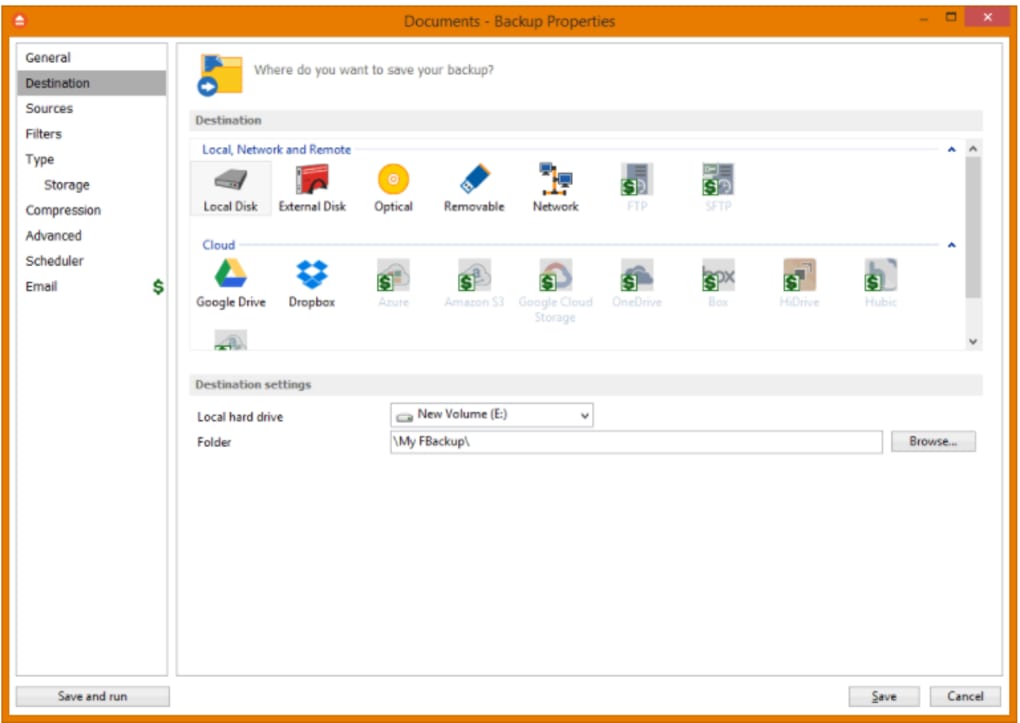
Upon opening FBackup, you’ll be greeted with two clear options: “Simple Backup Wizard” and “Advanced Backup.” For most users, the Simple wizard is the fastest route. Click “Simple,” then select the folder or drive you wish to protect. Next, choose a destination—this can be an external hard drive, a secondary internal partition, or a network share. The wizard will automatically suggest a daily schedule, but you can adjust the frequency, time of day, and even set multiple schedules for the same job. Advanced users can switch to the “Advanced” tab, where they can enable compression, set encryption passwords, and define custom command‑line parameters.
Running and Monitoring Backups
Once configured, you can start a backup immediately by clicking “Run Now,” or let the scheduler handle it at the predefined time. The main dashboard provides real‑time progress bars, transfer speeds, and an estimated time to completion. If you need to stop a backup, the new “Pause” button lets you temporarily halt the operation without losing progress; you can resume later with the “Resume” button. After each run, FBackup generates a concise log file that details files copied, skipped, or any errors encountered—ideal for troubleshooting or compliance audits.
Restoring Data Quickly and Safely
Restoring files is equally straightforward. From the main window, select the backup job you wish to recover from, then click “Restore.” You can choose to restore the entire backup set or cherry‑pick individual files and folders. The restore wizard mirrors the original folder structure by default, but you also have the option to specify an alternate destination. If you enabled encryption during the backup, you’ll be prompted for the password before the restore begins. This flexible approach ensures you can recover critical data with minimal downtime.
Pros, Cons, and Frequently Asked Questions
Pros
- Free, ad‑free solution with regular updates.
- User‑friendly interface suitable for beginners and power users.
- Supports compression, encryption, and network share destinations.
- Command‑line integration enables advanced scripting.
- Pause/Resume feature prevents data loss during interruptions.
Cons
- No built‑in support for FTP or cloud storage services.
- Lacks incremental backup capability, leading to larger storage footprints.
- Only available for Windows and macOS; no native Linux or mobile apps.
- Advanced scheduling options rely on the Windows Task Scheduler, which may be confusing for some users.
FAQ
Can I back up to an external USB drive?
Yes. FBackup detects all connected removable drives and lets you select any of them as a backup destination during the setup wizard.
Is the backup data encrypted by default?
Encryption is optional. You can enable AES‑256 encryption in the Advanced mode or when editing an existing job’s settings.
How does the “Test” operation work?
The Test function reads the backup index and verifies file integrity without extracting the data, ensuring the backup set is not corrupted.
Can I schedule backups to run when the computer is idle?
Yes. In the scheduler settings you can add a condition to start the backup only after a specified period of user inactivity.
Is there a limit to the number of backup jobs I can create?
No. FBackup allows you to create as many backup profiles as needed, limited only by your system’s storage capacity.
Conclusion – Should You Download FBackup Today?
After a thorough look at its capabilities, FBackup emerges as a solid, free alternative for anyone who needs reliable, automated backups without a steep learning curve or hidden costs. Its dual‑mode interface caters to both novices—who can get a full backup up and running in minutes—and seasoned IT professionals who appreciate the command‑line hooks and granular scheduling options. While the absence of incremental backups and cloud‑direct integration may push power users toward premium solutions, the core feature set—compression, encryption, network share support, and a robust scheduler—covers the essential needs of home users, freelancers, and small businesses alike.
The recent updates that introduced pause/resume functionality, a dedicated test operation, and full command‑line support demonstrate that the development team is actively listening to user feedback and expanding the tool’s versatility. This commitment to improvement, coupled with a clean, ad‑free experience, makes FBackup a trustworthy candidate for your data protection strategy.
If you are looking for a free, secure, and easy‑to‑use backup solution that works seamlessly on Windows and macOS, the answer is clear: download FBackup now, configure your first backup job, and enjoy peace of mind knowing your critical files are safely duplicated. Remember, the best time to start backing up is today—don’t wait for a data loss event to discover that you needed a reliable backup utility.
Guides & Tutorials for FBackup
How to install FBackup
- Click the Preview / Download button above.
- Once redirected, accept the terms and click Install.
- Wait for the FBackup download to finish on your device.
How to use FBackup
This software is primarily used for its core features described above. Open the app after installation to explore its capabilities.
User Reviews for FBackup 0
No reviews found





